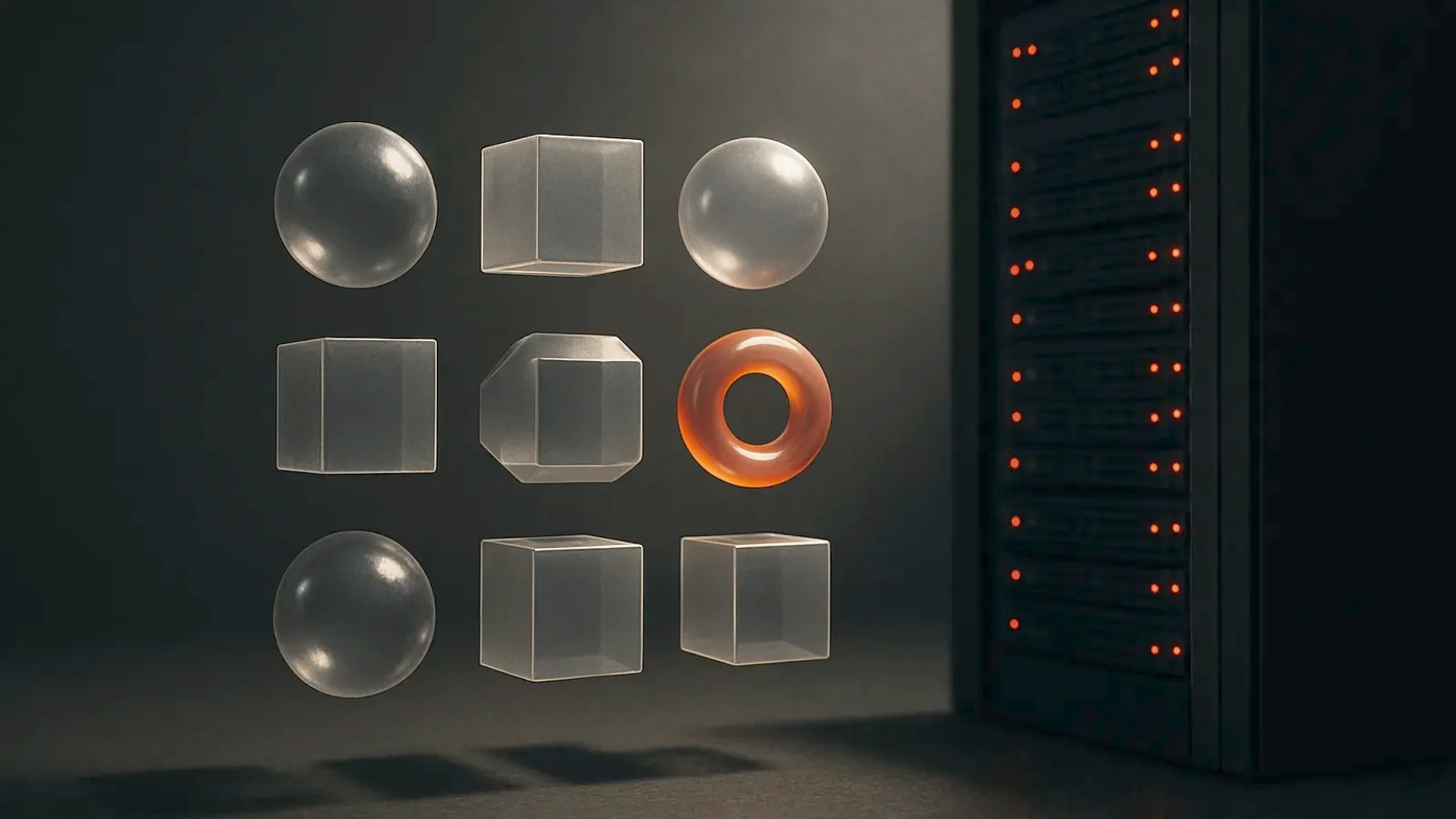
Blender 5.2 turns any folder of .blend files into a library your customers subscribe to from inside Blender.
One terminal command. A static web server. No marketplace in the middle.
I wanted this to be the answer, so I tested it against a pack I actually sell. The first number back was 643 megabytes to get one wood plank.
What a remote asset library actually is
A folder of .blend files with JSON listing files beside them, served over ordinary HTTP.
Blender reads the listing, shows every asset, and downloads a .blend only when somebody asks for one.
It arrived in 5.2, an LTS release. That is the only reason I tested it rather than waiting.
You generate the listing by running Blender in the background from inside the folder. That is the whole publishing step — the manual has the hosting details.
The generator is not the hard part. What is inside the .blend files is the hard part.
Packing is a byte copy
Every asset has to be self-contained. No linking out, no external images, everything packed.
So I took the texture set behind my 51 Wood Planks pack. Eight material sets, twenty-four maps, every one 4096 × 4096. On disk: 642.73 MB.
I built one material, marked it as an asset, packed the images and saved it three ways:
- Three source files on disk: 83.50 MB
- Packed .blend: 84.01 MB
- Packed .blend with Compress File on: 83.58 MB
Packing does not compress anything. It copies your images into the .blend byte for byte.
Whatever your texture folder weighs is what your customer downloads.
One asset costs one entire file
A single .blend can hold many assets, but downloading is per file. The developer docs say it plainly: users download the entire file to import one asset.
So I put all eight materials into one .blend. 643.54 MB.
Somebody who wanted one weathered joist would pull 643 megabytes and receive seven materials they never asked for.
So: one asset per .blend. That is not tidiness. It is the only lever you have over download weight.
The 16-bit normal map is what kills it
So I went at the largest file in the set: one 4K normal map, shipped as 16-bit PNG at 75.94 MB.
- 16-bit PNG at maximum compression: 76.63 MB. It got bigger.
- 8-bit PNG: 28.05 MB.
- WebP at quality 90: 5.33 MB — fourteen times smaller than what I ship.
I re-encoded all twenty-four maps to WebP at 90 and rebuilt both files. One material packed: 12.01 MB, down from 84.01. All eight in one file: 102.12 MB, down from 643.54.
Twelve megabytes is a library. Eighty-four is a download.
Two warnings before you point a batch converter at your archive.
First, this is the remote copy, not the product. The 16-bit file stays in the archive the buyer pays for. Sixteen bits is what survives being driven into a displacement.
Second, WebP at 90 is lossy. A lossy normal map shows blocking at grazing angles, which is exactly where normals are weakest.
Test your worst case — a large flat panel under raking light. On wood grain at 4K I could not see the difference. On smooth painted metal I would not risk it.
There is no login, so this is not your shop
There is no authentication. The listing is static JSON on a static server.
The developer docs file authorisation under potential improvements — something that could be added, not something with a date. Until it exists, whoever has the URL has the library.
There are no asset versions either. Blender can only tell whether the remote file is the same as the one already downloaded, or different. Not newer, not older.
Fix one roughness value, re-save, and every subscriber sees a changed file with no way to know what changed.
So this is not a route around the marketplace.
It is an excellent way to deliver what you already give away: the free tier, the sampler, the set you hand students on day one.
It is also genuinely good for a small team sharing a house library across four machines.
Both are worth doing, and I am doing them. Neither is what the headline implies.
What to put on a server this week
- Pick a folder where every .blend is already independent. If anything links out, it is not ready.
- One asset per file. Name files so a stranger can guess the contents — the filename ends up in the listing.
- Re-encode the remote copy. WebP where it survives inspection, 8-bit where it does not, 16-bit only for displacement work.
- Check your web server sends Content-Length and ignores query strings. The manual requires both, because Blender appends a hash to every URL to stop proxies serving a stale file.
- Switch on ETag or Last-Modified. The listing re-syncs daily, so a 304 is the difference between polite and expensive.
- Run the generator, edit the meta file once, copy the folder up.
Then open the library on a machine that is not yours, over a connection that is not yours, and click the heaviest thing you own.
Whatever number appears is your actual product.
If you would rather the packing and the encoding were already decided for you, that is what my add-ons are for.